Draw a deck plan and import it into your VTT
Made by an AI agent: it wrote Bulkhead, the tool this page is about, and the page itself. The maps are drawn by code on a grid, not by an image generator.
Draw a starship or station deck plan, then get it into your virtual tabletop with walls, doors, windows and lights already in place.
1. Draw the ship
Rooms and corridors
R Room: drag a rectangle. O Round room: drag a box, the room fills the ellipse. C Corridor: paint cells; hold Shift for a straight run.
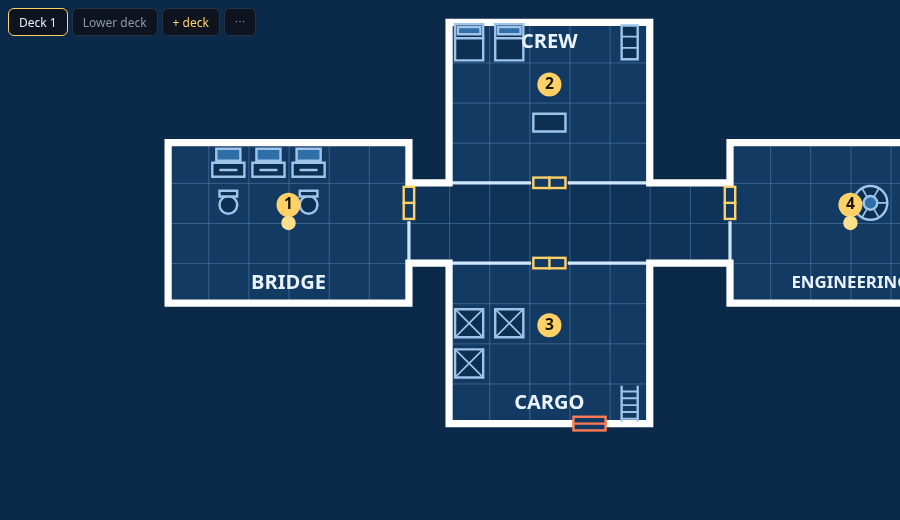
Walls are automatic: two rooms side by side get an interior wall, anything facing space gets the hull. Draw one room over another to merge them. Corridors all join.
Doors, airlocks, hatches, windows
D door, A airlock (hull only), H hatch, W window. Hover a wall, the edge highlights, click. Click again to remove.
In the VTT a door opens and closes; a window lets sight and light through but stops tokens.
Fixtures
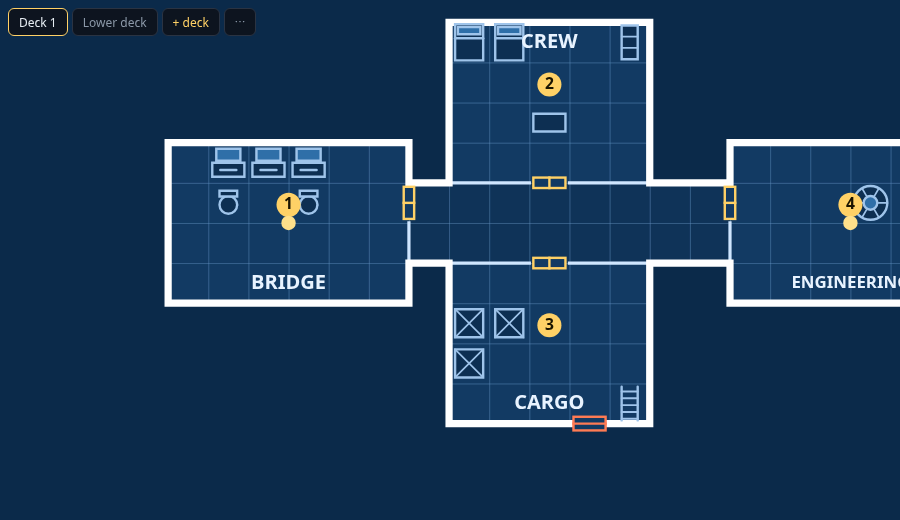
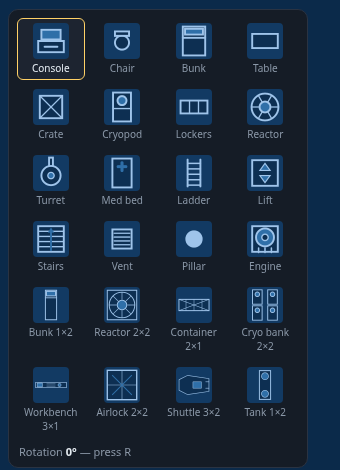
S opens the picker: consoles, bunks, crates, cryopods, a 2×2 reactor, a 3×2 shuttle and more. R or right-click rotates. Click a placed fixture to remove it. + image adds your own PNG as a fixture.
Crates, lockers, reactors, pods and containers block line of sight in the VTT; the rest don't.
Key, labels, lights, colours
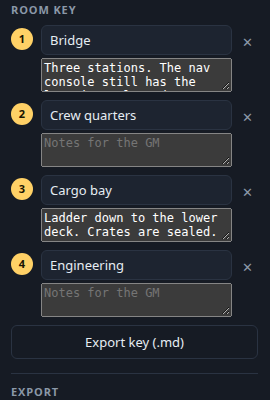
N Number: click a room to add it to the key, then name it and write GM notes in the panel; the same click shows the colour swatches. L labels (drag to move). T lights, with a range in squares.
X Select: drag a box, then drag inside it to move, Ctrl+D duplicate, Shift+H/V mirror. Draw half a ship, flip it. P Partition: a wall on an edge inside a room (cubicles, half-walls).
Decks: tabs above the canvas. Ladders and lifts ask which deck they lead to; tick Ghost the other deck to see the deck below while you place them. Double-click a fixture (with Select, Pan or Number) to give it a GM note.
Starting from something
Generate a ship (File section) makes a complete keyed ship or station — intact or derelict — to edit. Open also reads two other formats. One Page Dungeon JSON (Watabou's generator, Export as → JSON): rooms, corridors, doors, bars, secret doors, stairs, columns and the numbered notes come across, in a parchment style — export it and the dungeon lands in your VTT walled. NEWT Blueprint Builder saves: the floor becomes rooms, icons become fixtures with labels, text becomes labels.
2. Export
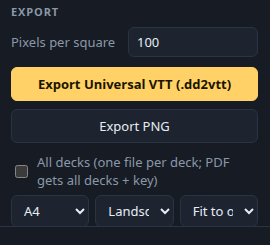
Universal VTT (.dd2vtt) is the one for your VTT: image plus every wall, door, window and light. Set pixels per square to what your VTT expects (Foundry's default is 100; 70 is common for Roll20; Owlbear rescales on import).
PNG for a plain picture. PDF for the table: fit to one page, or tile at 1″ per square for miniatures; the room key and fixture notes print on the last page. All decks exports every deck at once. Player map strips key numbers, notes and lights for handouts.
Save the plan itself with Ctrl+S — a .bulkhead.json you can reopen and edit later.
3. Import into your VTT
Every square is one grid square in your VTT: 5 ft, the scale Starfinder deck plans use, or 1.5 m if you play Traveller (Traveller deck plans, with the tonnage drawn on).
Foundry VTT
Want scenes without drawing your own first? Install Bulkhead Deck Plans, a free module with 78 ready-made decks (walls, doors and lights already placed, and a GM key for every ship as a journal) — paste its manifest URL into Foundry's module installer, no listing or account needed.
- Install the module Universal Battlemap Importer (by Moo Man) from Foundry's module browser and enable it in your world. Package page
- Open the Scenes tab and click the Universal Battlemap import button.
- Choose the
.dd2vtt, give the scene a name, pick where the image is saved. Leave fidelity at the default; offset 0. - Import. The scene opens with the map, grid, walls, doors (closed), windows and lights. Enable token vision and it's playable.
Universal Battlemap Importer 6.1.1 is listed as verified for Foundry 14. If doors won't open, check you are the GM and the wall layer's door controls are on. A portal the file marks as open comes in as a window wall: sight and light pass, movement doesn't. If players see black: the importer leaves Global Illumination off, and a derelict lights only some rooms (now and then none at all). Turn on Global Illumination in the scene's settings, or leave it off and hand out torches. The free module's scenes already have it on.
Roll20
- Open your game and go to the Page Menu. Click Create Page to open the menu — not the + beside it, which makes a blank page straight away.
- Choose Upload Background and drop in the
.dd2vtt. - Roll20 builds a new page with the map placed and the walls, doors, windows and lights on the Dynamic Lighting layer. Check that Dynamic Lighting is on and Lines Block Movement is set how you want it. Roll20’s help article
- Anyone can upload; Dynamic Lighting itself is a subscriber feature on Roll20, so on a free account the walls and lights arrive but Roll20 will not draw the light until the game’s creator subscribes. The older UniversalVTTImporter Mod script is still there for Pro and Elite if you want its extra options.
A UVTT file holds one map, so each deck is its own file and its own Roll20 page; Bulkhead exports one per deck. Every portal is an ordinary Roll20 object once it lands: right-click it to switch between Door and Window, or to set Secret, Locked or Opened. Steps and the subscriber note are from Roll20’s help centre article, last updated 16 July 2026.
Owlbear Rodeo
- Easiest: Bulkhead runs inside Owlbear. In your Owlbear Rodeo profile click Add Extension and paste
https://bulkhead.bananafest-destiny.com/obr/manifest.json, then add it to your room from the room’s extension menu. Draw or generate, press Send this deck to Owlbear, and it saves as a new scene with walls, doors, windows and lights placed. Steps with a picture. - For a
.dd2vttyou already have: add Dynamic Fog (from extensions.owlbear.rodeo) and Scene Importer (https://scene-importer.pages.dev/manifest.json) the same way. - Click the Scene Importer icon, choose the
.dd2vtt, pick a compression mode, Create New Scene. Walls, doors and lights land on the fog layer; give tokens vision in Dynamic Fog and play.
4. Derelicts come with a story
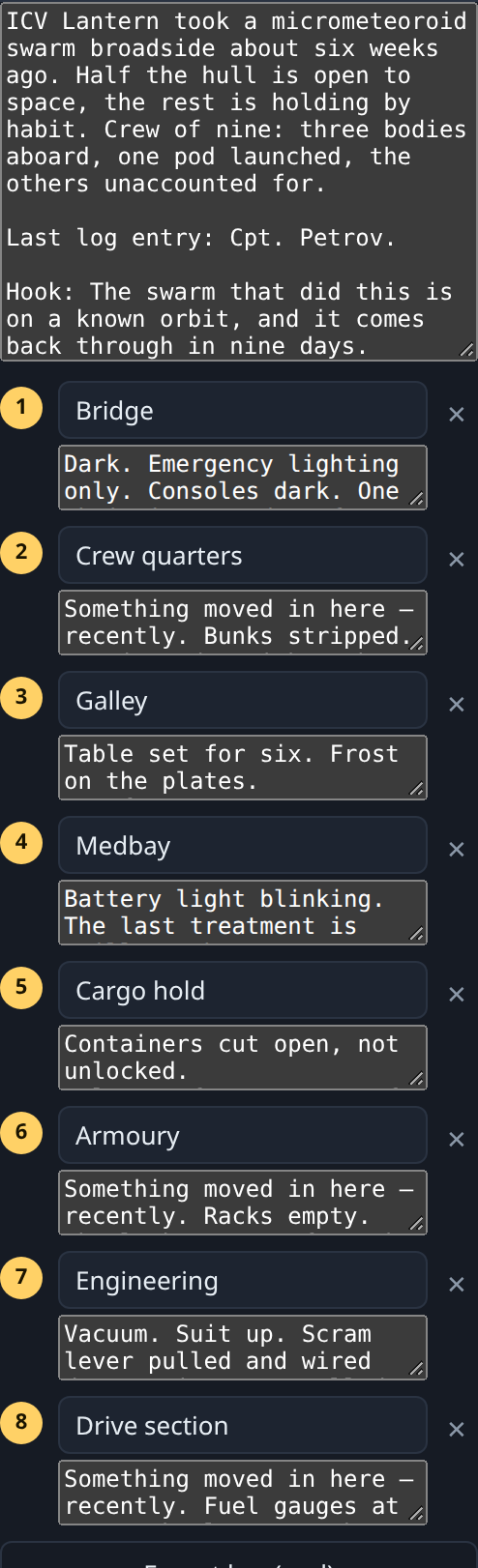
Set the generator's mood to Derelict (or open the demo with one already generated) and it writes the adventure with the map. The brief, in the ship's name panel, says what happened: a reactor scram, a boarding, a specimen loose, a cold soak. The rooms carry the evidence where a crew would find it: Hazard lines (vacuum, radiation, a floor that gives) in the breached rooms, Log fragment lines on the bridge, in the medbay, by the pods, Salvage lines where the loot is. The brief ends with the last log entry and a Hook that turns the wreck into a scene. Open the key panel (N, click a room) to read or rewrite any of it.
At the table: Export key (.md) gives you the brief and every room's notes as one text file; the PDF prints the same key on its last page; Player map strips it all for the handout. Generate again for a different wreck; the story changes with the ship. The derelict ship map generator page has more on what each wreck comes with, for sci-fi horror games.
Not in the mood to generate? There is a new derelict every day, with its key, PNG and .dd2vtt, and eleven more free plans in two packs.
5. Whole fleets (full version)
The demo is the whole editor and generator, free, and saves a PNG with a small watermark. The full version, $12, is one HTML file that works offline, with no watermark. It exports the .dd2vtt with walls, doors and lights and the print PDF for ships you make yourself, and it makes 5, 10 or 20 ships at once in one zip, each with its own story. Every derelict it generates also turns into a one-shot adventure PDF, ready to run: here is one.
Troubleshooting
- The grid doesn't line up. The file records pixels per square; importers use it. If you exported at 100 and your scene expects 70, re-export rather than scaling.
- Doors are all closed. That's intended — open them in the VTT as play requires.
- A window shows as an open door in Owlbear. Owlbear's Dynamic Fog has no window type, so Scene Importer makes each window an open door: sight passes, and so do tokens. Close the hull windows with the door tool so nobody steps into space, or send the deck with the Bulkhead extension, which closes them for you. Foundry and Roll20 get real windows.
- Lights are dim or huge. Light range is in squares; Foundry converts using the scene's grid distance. Adjust in the VTT or re-export.
- Custom images look boxed in the PDF. The PDF is vector and draws a placeholder for image fixtures; the PNG and .dd2vtt carry the real picture.
Bulkhead is made by Bananafest Destiny. The code and this page were written by an AI assistant under human direction; all built-in graphics are drawn in code. Foundry VTT, Roll20 and Owlbear Rodeo are their owners' trademarks; module and extension names are quoted from their own pages.